Showing posts with label Gorgeous. Show all posts

Thursday, June 4, 2015

These Gorgeous Brand Style Guides Will Inspire You To Be a Better Designer

When you’re putting together a brand, you want to make sure that you have all the bases covered for every possible scenario — but there’s no reason to make it boring. Canva found 50 style guides that go above and beyond the norm, creating both beautiful and functional results. We’ve selected 12 of our favorites right here for you to check out. Enjoy!


Skype


Ollo


Animal Planet


Barnes & Noble


Medium


Child of Light


Bing


Heineken


Swisscom iO


Apple


Jamie Oliver


Foursquare


Want more? Check out Canva for the full set!


Kevin Whipps is a writer and editor based in Phoenix, Arizona. When he’s not working on one of the many projects in his queue, he’s looking for fun and irreverent things online to share with his friends.
These Gorgeous Brand Style Guides Will Inspire You To Be a Better Designer

Thursday, May 21, 2015

Guy Proposes To His Girlfriend With Gorgeous Animated Video

It used to be that you could just get down on your knee to ask your beloved to marry you, but today, not so much. With people publishing their outlandish proposals online, a suitor-to-be has to step up their game or risk getting shut down because they didn’t have enough doves flying out at the right time, or a big enough dance crew throwing out rice and candy rings.


But I’m here to tell you all that the jig is up. There’s no further reason to try to top one another again, because Adam Rosenbaum won. And he won with this killer proposal video that’s just so beautiful.


(Sidebar: Did you know that kids asking to each other to prom is a thing? Not like a, “Would you go to prom with me?” thing, but like a full-blown production with video, choreography and everything. They’re called, “Promposals.” Ugh.)


Now I’m just going to leave this right here. Now excuse me while I go get a tissue.


Proposal from Adam Rosenbaum on Vimeo.


Link via Jon Farmer


Kevin Whipps is a writer and editor based in Phoenix, Arizona. When he’s not working on one of the many projects in his queue, he’s looking for fun and irreverent things online to share with his friends.
Guy Proposes To His Girlfriend With Gorgeous Animated Video

Saturday, April 11, 2015

Use Your iPad To Generate Gorgeous Color Schemes

During this installment in our series of articles about Adobe’s “Capture” apps, we’ll learn how to extract color schemes from real life moments using the native camera on an iOS device and Adobe Color CC. While the app is available for both iPhone and iPad, we’ll be using the iPad to reference examples in this tutorial.


In the first article, we learned how to capture vectors with Adobe Shape CC, and in the second, we used a similar workflow to capture Photoshop brushes with Adobe Brush CC. Both times we learned how to store these resources in Creative Cloud and use them in desktop apps such as Photoshop, Illustrator and InDesign. Adobe Color CC is a little different. While the iOS app was released as a companion to Shape and Brush in late-2014, it was in fact formerly known as Adobe Kuler (before CC), but only as a web-app for manually creating and storing color schemes.


Making Your First Capture


When you open the application for the first time, you’ll be on-boarded immediately and encouraged to make a capture. Adobe Color uses smart intuition to insert five “capture spots” on the screen where it thinks the most desired colors are – this is live and the spots can shift around if your balance is jittery, but luckily you can tap the screen to “freeze frame” and manually fine-tune the capture spots yourself.
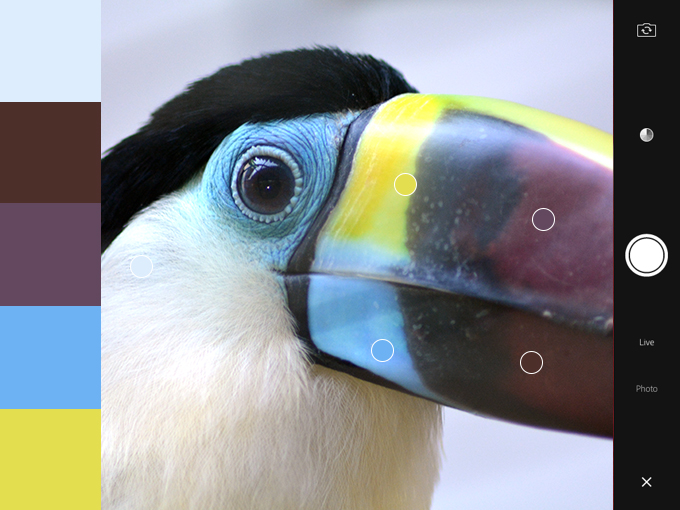

adobe-color-4


For the best results, I’d recommend making sure that you’re either outdoors or in a room that’s well-lit with natural light; this will ensure that the captured colors are accurate, however it’s normal to want to intensify the colors, add a complimentary color to the scheme, or simply or output results that weren’t in the original capture. If you’re happy with your capture, tap the big, round camera/capture icon to continue.


Exercising More Control


If you’re incredibly choosy (like most of us designers are!), you’ll want to tap the “color wheel” icon next. This will offer more technical control, such as the ability to alter colors by their HEX or RGB values. In the bottom-right corner of the screen, the “color scheme type” icon will let you choose to convert your color scheme to something more Analogous, Monochromatic, Triad, Complementary or Compound , this is the best way to try out and ultimately achieve effective color schemes based on a “rough” capture.
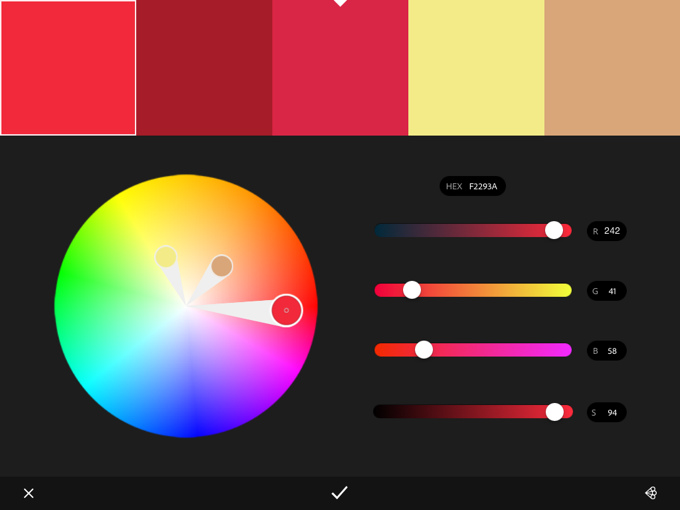

adobe-color


In short, Adobe Color is a useful application because it lets you exercise as much control as you like. It’s not uncommon to capture the desired color scheme in a single try, but more complex options are instantly available if you need them.


Press the “check” icon when you’re ready to save it.


I’ve Made a Color Scheme, Now What?


We’re almost done. At this stage you’ll be asked to name your theme, add comma-separated tags, optionally share it on social media channels…and all that jazz. Tap “Done” on the keyboard when you’re ready. For the first time, you’ll be shown “My Library” and your first color scheme will be clearly visible.
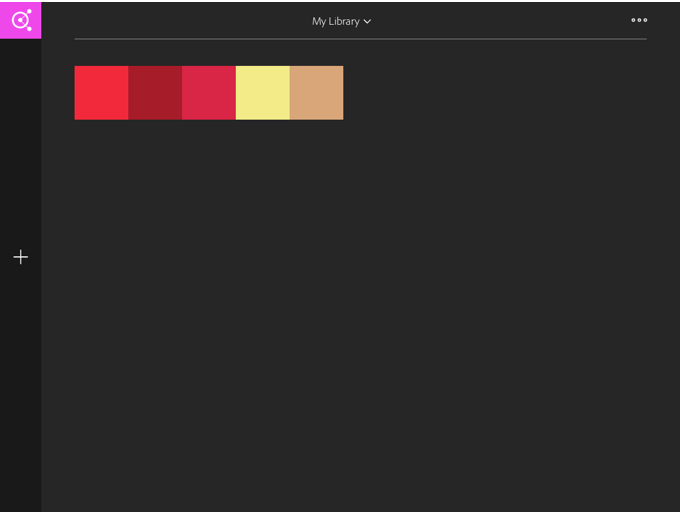

adobe-color


You can select the color scheme to either delete or make changes to it, or otherwise tap the “+” icon to create a new scheme, but for now we’ll explore the ways in which Adobe Color CC integrates with the Creative Cloud. At the top (middle) of the screen you’ll be able to tap “My Library” and create a new one, or if you’ve used the web-app version of Adobe Color before, you can explore the themes from that in a separate library. The three-dot “more” icon in the top-right corner of the screen lets you rename, delete, or setup a collaboration for the library currently selected; this is useful if you work in teams.


Finding Creative Cloud Libraries in Desktop Apps


You can now use these color schemes in Photoshop, Illustrator and InDesign by navigating to Window → Extensions → Adobe Color Themes in any of those desktop applications. Adobe’s lesser-known code editor, Brackets, also has native Adobe Color CC functionality, so your color schemes can be easily imported into web designs too. When the time comes to choose a color, Adobe Color CC will be available as an option.


Conclusion


Adobe has come so far in the last 12 months in terms of mobile, continuity and cloud-based software, and this means big things not only for designers, but for Creative Market shop owners too. It’s now even easier to capture real life elements such as brushes, vectors and colors all within an Adobe workflow.


Employing the use of digital SLR cameras and scanners to import hand-crafted material is no longer needed, and I for one am deeply excited to see Creative Market resources being created with these new mobile apps. I have a couple in the works myself!


Products Seen In This Post:


Share on Pinterest
Share on Pinterest
Share on Pinterest



getpaidtowrite-banner
Use Your iPad To Generate Gorgeous Color Schemes

Thursday, March 5, 2015

22 Best Selling Gorgeous Font Families for 98% Off

I know I have many fellow font lovers in my readership so I can see you all going nuts over the latest fonts bundle from Design Cuts. This is their biggest and most varied collection yet with 22 font families, including artistic hand-drawn fonts, corporate fonts, elegant fonts, traditional fonts, script fonts and more! All these popular, best selling products come with web font variants and extended licensing so you can use them in any design project, even items you intend to sell.


22 Best Selling Gorgeous Fonts Preview


There’s an impressive variety of font styles in this bundle, giving you a complete library of typefaces in just one purchase. This is particularly good for anyone just starting out, as it provides a thorough selection of premium fonts that can be used in any kind of design project. What’s more, the discounted price is unbelievable, saving a massive 00 off the total value, with web fonts and extended licenses even included at no extra cost.


There’s way too many fonts to feature in my review, but since there’s such a wide variety, here’s a little taster of the styles you expect to find. Make sure you scroll through the full overview to really appreciate the incredible value of this bundle.


Artistic Hand Drawn Fonts


Artistic Fonts Preview


Artistic fonts like Heart & Soul, Pretty Script and Heartwell are beautifully hand lettered with brushes to add character with natural irregularities. These fonts even come with additional extras such as doodled ornaments to decorate your design with perfectly complementing elements.


Corporate Fonts


Corporate Fonts Preview


It’s important to have a range of professional serif, sans-serif and slab serif typefaces in your arsenal for use in corporate designs. Font families such as Roble Alt, Andes, Modernica and Santis are perfect for print design and come in a huge variety of weights and styles.


Elegant Fonts


Elegant Fonts Preview


Cute typefaces such as La Chic, Espresso Beans, Local Market, Capriccio and Pacific Northwest have friendly styles which make them great for use in kid’s themed designs, cafes, greeting cards, and anything that could be described as fun!


Traditional Fonts


Traditional Fonts Preview


Some my favourite fonts are those that replicate traditional styles from retro or vintage labels and signage. Yonder, Burford, Growler and True North are great examples. They all have an old letterpressed appearance and come with multiple alternates to ensure no two letters look the same!


Script Fonts


Script Fonts Preview


One of the best uses for Script fonts is to create loud logos, headings and posters. Logotype Frenzy, Peaches and Cream, and Monday are all bold brush scripts that grab your attention. They even contain stylistic alternates and ligatures to give your designs even more attitude!


Loads more fonts and a free bonus!


22 Best Selling Gorgeous Fonts Preview


This bundle contains loads more fonts that I haven’t even mentioned. See them all, along with details of a cool free retro text kit bonus item over on the Design Cuts deal page. Here you’ll see the full value of the bundle and everything it contains. This is a limited time offer so don’t miss out!


Get 98% Off 22 Best Selling Gorgeous Fonts ()


The post 22 Best Selling Gorgeous Font Families for 98% Off appeared first on Blog.SpoonGraphics.


22 Best Selling Gorgeous Font Families for 98% Off

Saturday, January 31, 2015

From Terminator to Top Gun: The Gorgeous Illustrations of Grzegorz Domaradzki

Grzegorz Domaradzki, or Gabz as he likes to be called, is a freelance illustrator with an absolutely beautiful portfolio and a long list of impressive clients, from Nike to Warner Bros. He has a master’s degree in graphic arts and drawing from the Academy of Fine Arts in Poznań, and typically starts his work by hand sketching everything before vectorizing it on his Mac.


Below, you’ll see some familiar faces in his illustrations, including characters from Terminator, Teenage Mutant Ninja Turtles, Judge Dredd, and more. If you love illustration and the 80s-90s, he’ll be your new favorite artist.


gabz-terminator-1


gabz-terminator-2


gabz-terminator-3


gabz-terminator-4


gabz-terminator-5


gabz-terminator-6


gabz-terminator-7


gabz-terminator-8


gabz-terminator-9


gabz-terminator-10


gabz-terminator-11


gabz-terminator-12


gabz-terminator-13


gabz-terminator-14


gabz-terminator-15


gabz-terminator-16


From Terminator to Top Gun: The Gorgeous Illustrations of Grzegorz Domaradzki