Showing posts with label Vectors. Show all posts

Tuesday, June 9, 2015

10 Sites to Download Artful Vectors

Vectors are an important element of web designing and having a huge collection of these artful designs at hand surely helps in the completion of a web designing task quickly. Here we’ve tried to showcase the best free sites available which provide Vector designs which can be used for both personal and professional use. These sites offer designs which are devoid of royalty rights so they can be downloaded with ease.


1. VectorStock


When  designer is looking for the best quality Vectors at an amazingly low price, VectorStock is a convenient site. The institution specializes in images, illustrations and graphics which are exclusively Vectors. They can be downloaded as ZIP files.


vector


2. Vecteezy


Looking for Vector designs from artists all over the world? Interested in submitting Vectors for the world to check out? Vecteezy is the perfect platform to use. Apart from providing free Vectors for a project it also provides a forum to discuss designs with other artists.


vector


3. FreeVectors.net


FreeVectors.net is a forum which allows artists to submit their Vector designs for free so that others can use them for commercial or individual purposes. The latest vectors are put on display in the front page. This site also allows users to leave comments.


vector


4. VectorVault


VectorVault allows designers to find unique and stylish Vector art with ease.  Search for the desired Vectors, pay and go. It’s that easy.


vector


5. DesignBum


DesignBum owned by Issara Willenskomer, who has been creating Vectors for over eight years, provides users with Vector designs and tutorials which will truly inspire them. Download project source files or view the details one by one or altogether from the link provided on the site.


vector


6. LogoTypes101


LogoTypes101 is a website which provides designers with cool Vectors which are compatible with most website hosts. It allows users to download the Vector designs in forms of CDR, AL or EPS formats. It also hosts forums for users to check out cool logos and design tips.


vector


7. Q Vectors


When looking for a website which provides cool and free Vectors as well as tips to create designs, Q Vectors is the place to be. It has the Vectors classified under various categories so choices are easily found.


vector


8. Free Vectors.com


Free Vectors.com allows users to pick and choose designs from the huge collection available. It is safe as well as secure and is available for commercial uses too. It also has Vectors which can be used in projects meant for various medias.


vector


9. Dezignus


Stanly created Dezignus as a personal blog in the year 2007 which was later converted into a community for the use of various artists and people who are looking for unique and chic Vectors for their projects. The authors work with the motto of making the web a prettier place to be.


vector


10. Designers Revolution


Designers Revolution is a free Vector site whose the motto is dedicated to creating one of a kind designs and web resources. The designs provided by the site are all handmade and customized according to the need of the customers.


vector


We hope these sites will provide assistance in creating or downloading Vectors for projects.


10 Sites to Download Artful Vectors

Thursday, March 5, 2015

How to Capture Vectors on Apple iOS with Adobe Shape CC

In the final quarter of 2014, Adobe released a number of new apps on the Apple iOS App Store. One of those was Adobe Shape CC. In this article, we’ll explore the ways in which we can capture and edit high-fidelity vectors from real-life moments using the device camera on either an iPhone or iPad. We’ll also be able to save these captures in our Adobe Creative Cloud for further use in Photoshop, Illustrator, InDesign or the new Illustrator Draw.


Capturing the Light


Before we even open the app, it’s important to be in a well-lit area; this will improve the quality of our capture and save us a lot of time trying to edit rubbish vectors. Clear and concise shapes work best, this means that clouds in the sky won’t look as elegant as say a hand-sketched illustration with a fine liner. In fact, I’d still recommend using a digital SLR camera and image tracing the result in Adobe Illustrator for photo-realistic captures.


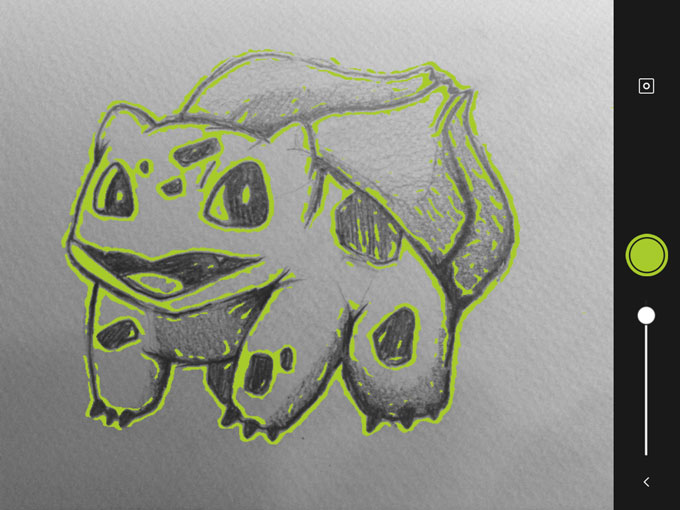
When you’re ready, take a snapshot.


adobeshapecc
Step 1: take a snapshot with the device camera


Altering Our Capture


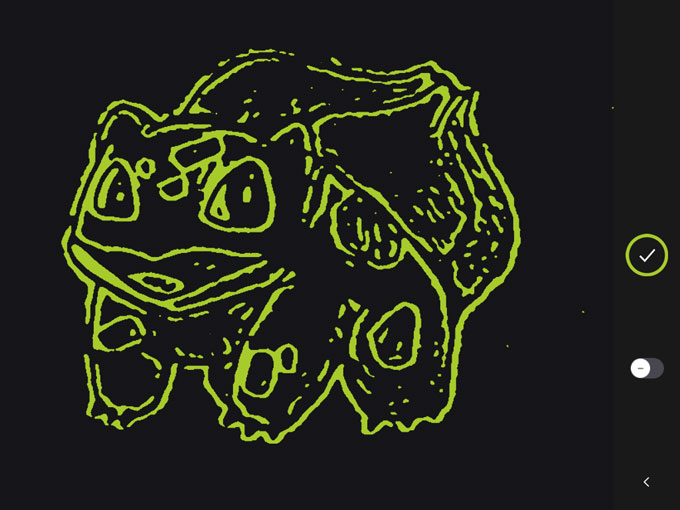
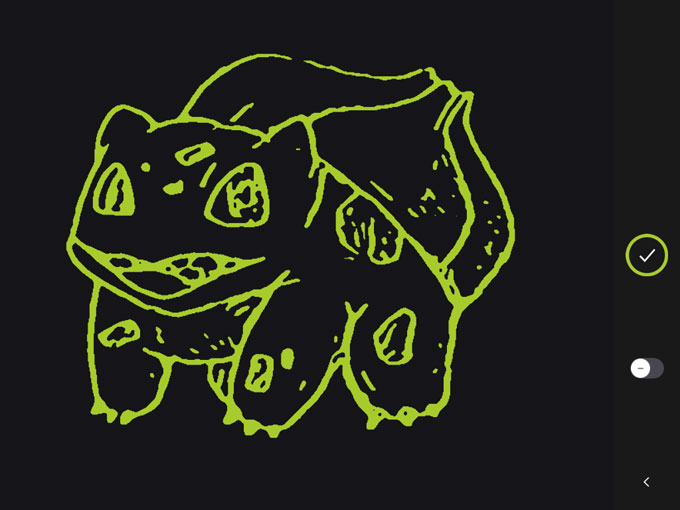
Before Adobe Shape converts our image to vector, we have two options that we can tweak to improve the capture. First, there is an icon that switches between Shape on light background and Shape on dark background. Dark background works more closely with the outline of our hand-drawn capture, whereas light background converts the areas we actually sketched — you can observe the differences in the two resulting images below.


adobeshapecc
Step 2: capture on a dark background


adobeshapecc
Step 3: capture on a light background


In the second option, we have a scrubber that will alter the threshold of the capture. Photoshop has this setting under Image>Adjustments>Threshold, and Illustrator can accomplish this with Image Trace, but Adobe Shape CC will let us alter the threshold directly after the capture.


Don’t be too disappointed by the result at this stage. Remember, the shape hasn’t been refined yet, the real magic is still to come.


Removing Unwanted Elements


When you’re done altering the image threshold, tap the green circle to continue. In this next screen, you’ll be offered the chance to remove any unwanted aspects of the shape before the vector is refined, which you can do by simply selecting the undesired blemish on the canvas.


If there’s only a tiny aspect of the shape that you require, switch the toggle button to “+” — this means “yes, we’ll keep only this part” instead of “yes, we’ll delete this part”. Tap the circle/tick icon when you’re ready to continue.


Refining Our Vector Shape


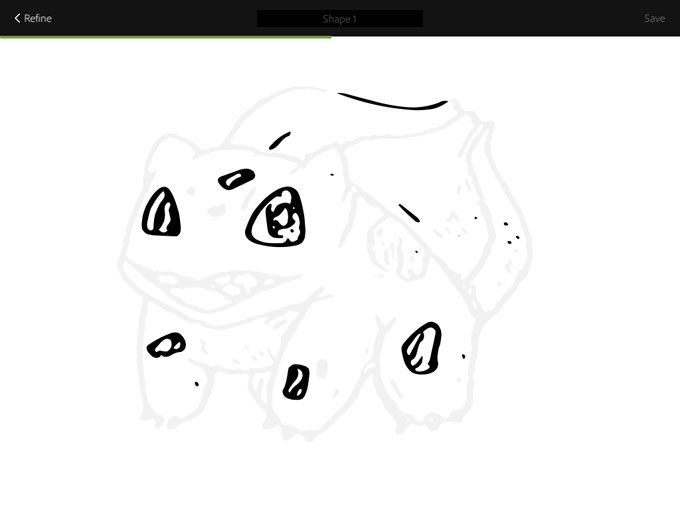
Now sit back while Adobe Shape refines our vector. It’s actually quite entertaining to watch, and it’s hard to resist the temptation to capture random shapes just so we can watch them being drawn.


adobeshapecc
Step41: refining our vector shape


When the refinement is complete, you’ll notice a drastic improvement in quality; Adobe Shape will also ask you to name this vector, and when you do so, it’ll be available in your Creative Cloud account under Libraries.


Great, What Now?


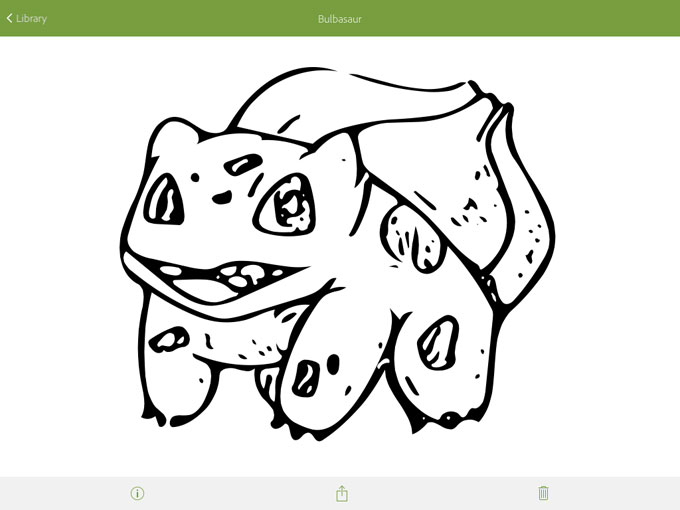
You’ll automatically be taken to the library and your first vector should be inside it. Here, you can look at your vector in more detail, create another vector, or invite other Creative Cloud members to collaborate in your library. Now select your vector and lets see what we can do with it.


adobeshapecc
Step 5: using our vector in Photoshop


We have three options: Rename, Share and Trash. Although we can share our vector via email, iMessage, Twitter and so on, it will be a JPG version. I was quite disappointed, but not shocked by this. Creative Cloud is, after all, a subscription-based service, and this is Adobe’s way of ensuring that the free mobile apps are being used by subscribers and not freeloaders.


In any Adobe desktop application like Photoshop, InDesign or Illustrator, you can open a file stored in the Creative Cloud library by navigating to Window>Libraries and dragging the vector onto the canvas. Just make sure that your application is running the newest Creative Cloud updates, because Libraries and SVG support are both new features.


Photoshop? SVG? Huh?


Photoshop CC has supported SVG files since its last update on the 6th October 2014. If we wanted to use our vector in a non-Adobe application (for example Sketch App 3) we could make use of Photoshop’s new Extract Assets feature to export the SVG onto our desktop. Illustrator of course fully supports opening, editing and exporting SVG files splendidly.


Conclusion


Adobe Shape CC is an excellent, time-saving mobile app for designers that work with vector, especially for Creative Market shop owners that seek inspiration from anywhere and everywhere. If you’re ever away from the computer and you come across a shape that inspires you, or you’ve drawn something and you’re not near a scanner, use Adobe Shape, capture your moment, and it’ll be waiting for you in the Creative Cloud later.


getpaidtowrite-banner
How to Capture Vectors on Apple iOS with Adobe Shape CC

Free vectors at 1001 Free Downloads

Screen Shot 2015-03-03 at 7.43.25 am

1001 Free Downloads have some pretty cool exclusive design resources. For those of you who like bokeh backgrounds, there are free vector bokeh backgrounds to download for personal or commercial use (with attribution). The download file includes .jpeg, .eps and .ai files.


Bokeh Background


Bokeh Background 67


Bokeh Backgrounds


I know everyone likes geometric backgrounds, and you’ll find some good ones:


geometric backgrounds


As well as some nice patterns, like this rather foxy one:


fox pattern


They’ve got a bit of everything – like this set of Bertie Icons.


bertie icons


Check out 1001 Free Downloads – like the name says, it’s all free!


Free vectors at 1001 Free Downloads