iPad drawing apps are a dime a dozen. There are a million of them out there, ranging from the really great (such as Paper by FiftyThree) to the downright terrible. What if you want to get some real work done on an iPad though? In my view, to really turn my iPad into a professional drawing tablet, I need an app to do one of two things:
- Allow me to work directly in Photoshop or Illustrator – If we’re talking real work, then I almost don’t even want a new app. Let me use the iPad’s awesome technology and UX to draw with the professional tools I already use, just like a Wacom tablet.
- Give me vector or give me death – If a professional drawing app wants to live solely on the iPad, that’s fine, but it has to churn out vector art that I can export to Illustrator. This means a Pen Tool, editable shapes, boolean commands, the whole nine yards.
Great Mirroring Apps
First up are the mirroring apps. There are quite a few of these to choose from, but they tend to get pricey so you want to make sure your money is well-spent. I used to be an AirDisplay man, but AstroPad is definitely the new app to beat in this category.
AstroPad
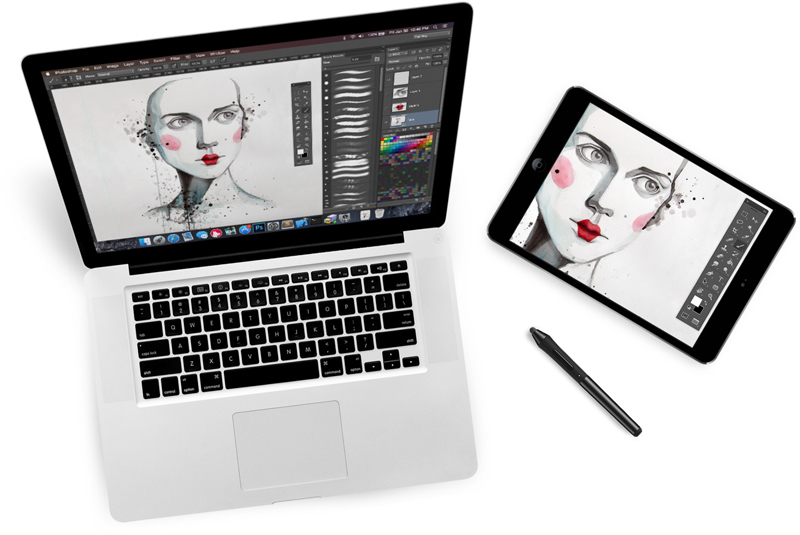
AstroPad is the newest entry into this category, and in my experience, easily the best. It gives you the ability to draw right in Photoshop or Illustrator on your Mac, with cool custom shortcuts, and almost no lag. This app offers the best quality of graphics on the market, and it costs .99 to purchase. One of the best parts about AstroPad is that it uses an up-to-date LIQUID technology that ensures you never lose the quality of the image you’re working with. Astropad also offers a student price for interested buyers, as well as a free trial.
AirDisplay
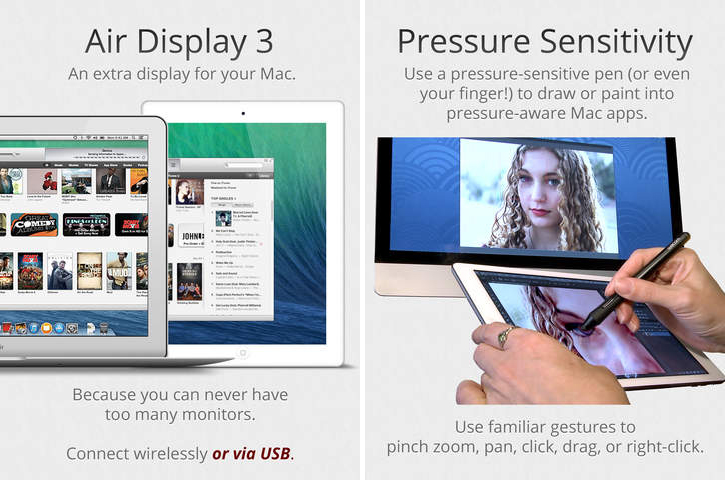
From the company Avatron comes AirDisplay, which is a great iPad app choice for any artist looking for an effective mirroring app. It offers the chance to mirror what you see on your tablet on up to 4 monitors at once. The app works using connection via wireless Internet connection, removing any annoying cords or USB cables and making for a comfortable and convenient drawing experience. Right now, AirDisplay is available for Apple devices, Android devices, and those that run Windows and can be purchased for .99.
AirStylus
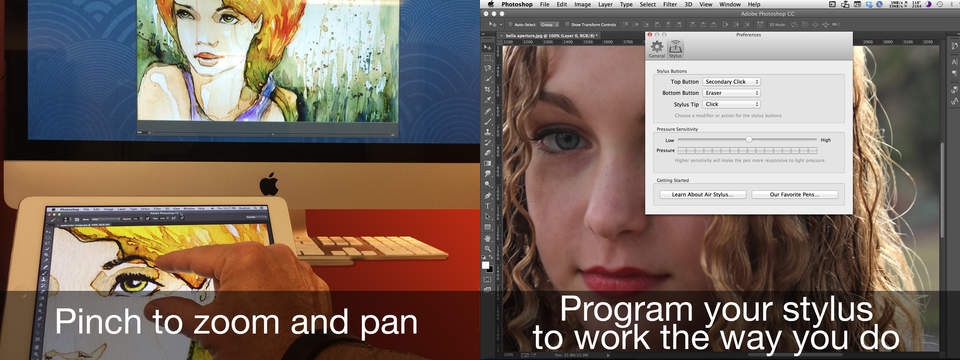
Avatron also makes Airstylus—an extension of AirDisplay that offers the ability to use their mirroring techniques on iPads as well as on iPhones and the Galaxy Note. The program allows artists to draw on their tablet via a stylus. Since it is very pressure sensitive, it’s perfect for work that requires accurate lines and fine, minute details. The stylus links wirelessly to your display, so there are no clunky cords to deal with. While Avatron has announced that they’re moving away from AirStylus in the near future, older versions of the AirStylus app are available in the App store for the iPad for .99.
SplashTop Remote
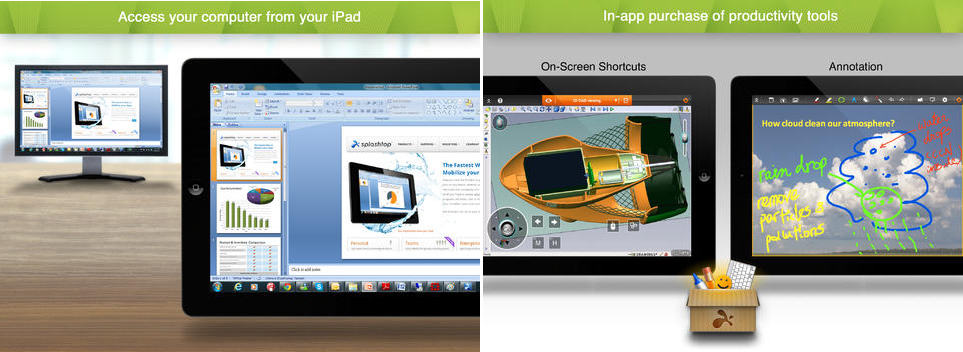
SplashTop remote is one of the most popular apps that allows users to control their computer from afar. The app offers the ability to control your computer from your iPad, and allows users to access things like videos, music, and more from your computer. Users can use their favorite art and drawing software from their computer via their iPad with SplashTop, which makes it a good choice for artists interested in convenience or moving around away from a desktop while they work. This app is currently offered for free when using your computer’s local network, but if “Anywhere Access” is purchased it will only cost users .99 per year.
iDisplay
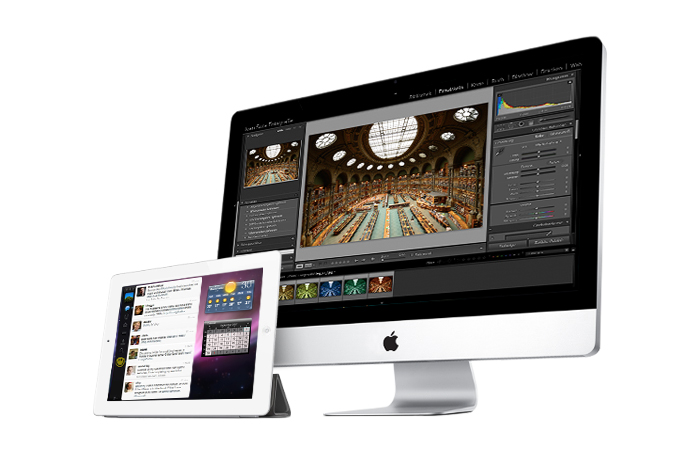
iDisplay is currently available for free on Mac OS X and Windows, and is a popular app that allows people to use their iPad as a second display. This app has it all for someone looking to draw via a table and offers more screen space because it is able to be connected to several wireless devices all at once. It’s also easily customizable when used with different devices.
Vector Drawing Apps
Now for the vector drawing tools, which are actually pretty impressive. For my money, iDraw is the closest thing there is to a native iPad version of Adobe Illustrator. It has a pen tool, layers, boolean commands, grids, snapping, effects, just about everything you could want. InkPad is a great alternative that’s completely free.
iDraw
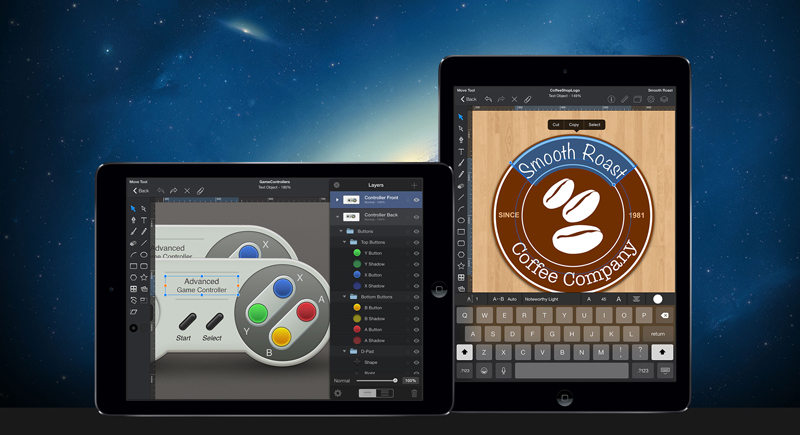
iDraw is one of the best vector drawing apps on the market, and it combines the convenience of an iPad with the power of a desktop. The app is easy to understand and is consistently top rated by all users. It’s simple to share edit designs between devices (like Mac and iPad). The app has some especially exciting functions, like core text editing, Photoshop import and export, and an In-Place Color Picker.
InkPad
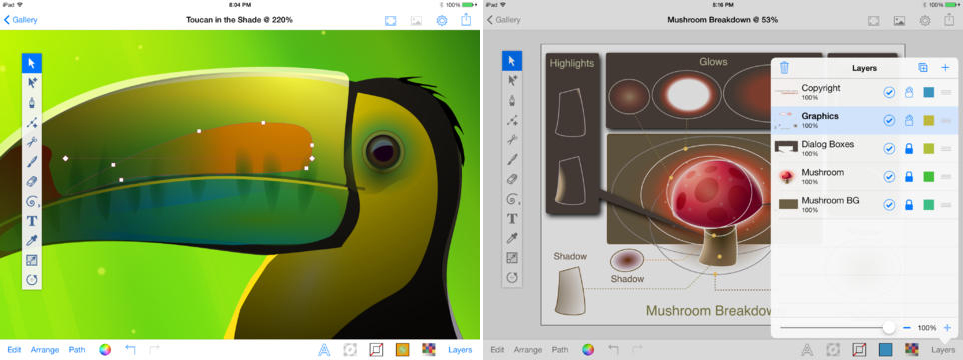
One great free vector drawing app for the iPad is InkPad, which was designed to work specifically on the device. It comes highly recommended by those who use it for its ease of text, images gradient fills, etc. Its selection of tools is close to that of Illustrator, and it is easy to use, even for beginners. If what you’re looking for is a powerful drawing tool and the lowest price possible, you can’t get better than this.
Intaglio Sketchpad
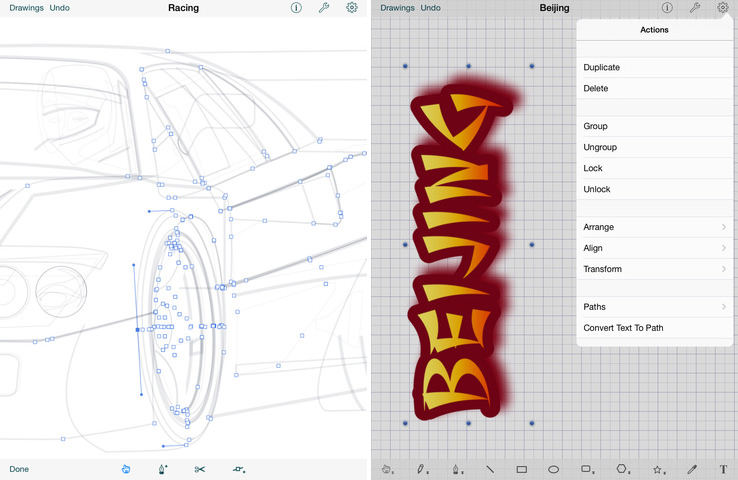
For a vector artist that is looking for something straightforward that functions really well, check out Intaglio Sketchpad, a tablet drawing app creating by Purgatory Design. The app has a full set of drawing tools, and it utilizes multi-touch technology.
TouchDraw
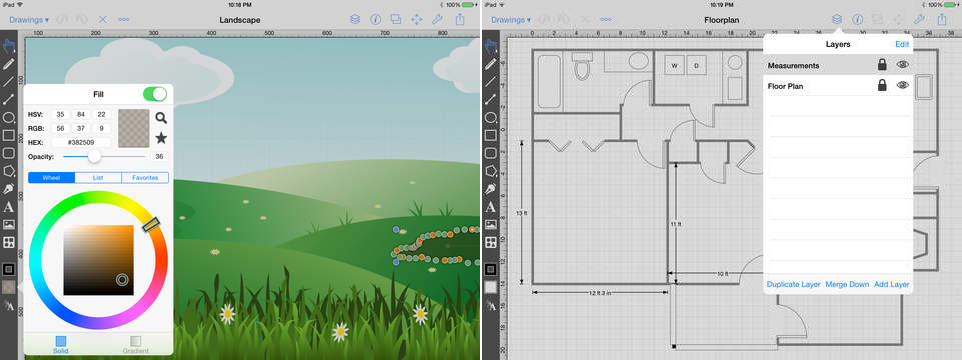
Elevenworks has created TouchDraw, which has all of the expected options of the 2D Vector drawing app and more. In fact, the app has most of the features of a desktop vector drawing app, and it can be used in conjunction with TouchDraw for Mac. TouchDraw has been rated as being one of the best vector apps available and is priced affordably at only .99.
iDesign
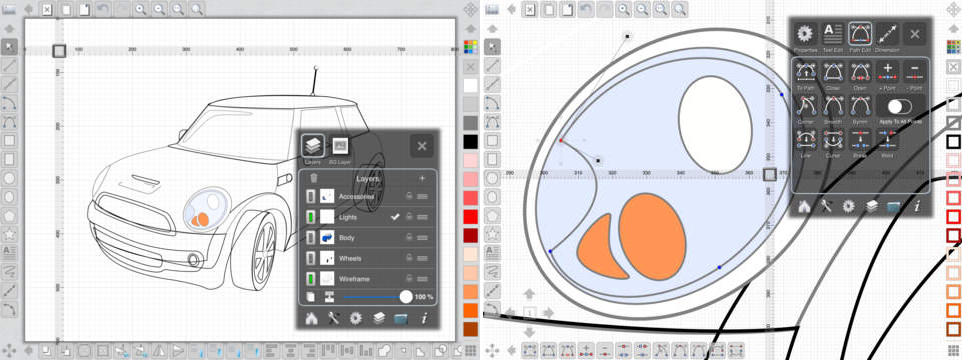
iDesign is currently one of the most popular vector apps on the market today and allows you to create 2D vector drawings on the iPad, iPhone and iPod touch. The interface of iDesign is simple to use and offers a huge selection of advanced, in-depth features. Some of these features include a full screen board view so your image isn’t obscured in any way and has offset handles for moving the screen, so your finger never gets in the way of what you’re trying to see. iDesign can be downloaded from the app store for .99.
Tell Us Your Workflow
Do you do professional drawing work on your iPad? Tell us about your workflow. Do you use a mirroring app like Astropad, a vector drawing app like iDraw, or something else? Leave a comment and let us know.
Products Seen In This Post:


10 Apps to Turn Your iPad Into a Bad Ass Drawing Tablet