Showing posts with label Every. Show all posts

Thursday, June 18, 2015

10 Useful Image Tools Every Social Marketer Needs

If you work with social media a lot, you must know that every platform requires different dimensions for the photos you upload. These dimensions ensure that you can create the best-looking photo for that position or location, be it a Facebook cover photo or a cover photo for Google Plus, a Twitter header or more.


To do this manually is a pointless venture because now there are plenty of tools that can help you manipulate your images into the dimensions and sizes suitable for most, if not all social networking sites out there. Here are 10 great tools that have help you better manage your images for higher social engagement online.


1. Social Image Resizer Tool


Social media is fickle-minded. There are so many image size rules for so many social networking sites that it will be a surprise if you can keep track of them all e.g. Facebook requires 315px by 851px for its cover photo, while Twitter requires 1500px by 500px.


With Social Image Resizer Tool you don’t have to worry about all these figures and dimensions, just click the item you want to generate your image in and the tool resizes your photo for you. You can then export the image to Facebook, Twitter, Google+, Linkedin, Pinterest, Instagram and YouTube.


2. Social Media Image Maker


This tool pretty much covers all major social networking sites out there and more. It is the perfect tool to find the perfect size and dimensions for use on any of the 16 social networks and services listed. Make profile pictures, headers, cover photos, backgrounds, then post them directly to the services from the tool.


Just pick the image you want to change, then click Create > to go to the editing page. Drag and drop your image in, or upload it from the Add your file button at the bottom of the page. Besides cropping your image to the right size, this tool also allows you to add filter effects and image adjustments such as sharpen, blur, desaturate and more.


3. Pablo


Pressed for time? Use Pablo to create the image you need in under 30 seconds. Insert your quote, add a secondary text or a logo, fix your headline text size and color then choose your background. You can choose any of the ready images or you upload your own. You can also tweak the images to carry a blurry effect or to change into a black and white photo.


Once you are done, you can share this on Facebook or tweet it. Alternatively, it can be placed in Buffer to be scheduled for later sharing, or downloaded to your desktop.


4. Pinwords


Pinwords helps you add a quote or caption to one of six typographic layouts. Your text can be easily shifted about, enlarged or shrunk to the right size. Upload an image you want to work on or pick an image from the web to get started, pick the font or typography style that you want, change the size of your text then click "Pin it" to save all your changes.


Once you are done, you can share your results via Facebook, Tumblr, Pinterest, Twitter or email. Pinwords also has a bookmarklet which you can just drag and release on your bookmark bar to start using.


5. Befunky


Befunky is a mash of three tools: a photo editor, a collage maker and a tool to give you awesome photo effects. Apart from the regular tools (sharpen, blur, crop, etc), Befunky’s photo editor tool gives you color effects like color pinhole, chromatic, charcoal among others, and the ability to add not only text but also graphic elements.


Another cool feature is Overlay, that allows you to mask your image with a predefined shape. The fun thing about Befunky is that you can upload photos from a variety of sources including your desktop or webcam, Facebook or cloud storage like Google Drive and Dropbox.


6. Canva


Canva is a great tool for non-designers who just want to create a typography image without learning anything new. The tool has predefinted templates with the right sizes for each of the social media sites e.g. for Facebook cover photos, Instagram, Twitter headers, Pinterest graphics etc. It also accommodates custom dimensions if there is a need.


For quick use, you can choose one of hundreds of templates with fancy images and typography from the Layout panel; just edit and publish. Furthermore, you can also add text from the Text template, and choose the best photo or pattern background from the gallery, or upload your own photo, to create great images.


7. Recitethis


Quotes are hot content on social media and one of the most share-able too. The catch is, it is the kind that comes with a background image. ReciteThis is a tool you can use to create quote images very easily. Simply enter your quote in the form provided, and a live preview will be shown to you. Pick the template you find more suitable, then click the ‘create’ button.


You can also post directly to 5 different social media sites or download the image. Alternatively, you can send the permalink of the image, email the image to a friend.


8. Pagemodo


Cover photos on a social media account is one of the first images seen due to its upfront location. Hence, it would be smart to use cover photos to describe you or your brand in the most eye-catching way possible. You can do this with Pagemodo.


It has dozens of themes that are very interesting and customizable, letting you create a collage of your photo collection, or photos with beautiful typography. You can add your photos, text, logos, shapes and background, as well as edit the location and size of each component.


9. Share As Image


With Share As Image, you can easily add text and filters to your image. Once you have added text to the form, drag and drop the text to position it where you want it. The text field is unlimited, just add according to your needs. There are also options to save images to use on Twitter, Pinterest and Instagram.


The pro version of this tool lets you change the logo to your own, and provides you more photos and filters. Also you can unlock the tens of template to use, and save design time. The pro version costs per month.


10. Infogram


If you need to display an infographic, infogram is a simple yet great tool to create infographics quickly. It’s easy to use, and it comes with infographic templates. If you have more time, you can create it manually by taking a chart from the cart list, and replacing the data values with your own data set. Besides that you are also add country maps.


You can unlock additional features from per month, such as replace the infogram logo with your own logo, download infographics, and other cool features.


10 Useful Image Tools Every Social Marketer Needs

Wednesday, June 17, 2015

10 Useful Image Tools Every Social Marketer Needs

If you work with social media a lot, you must know that every platform requires different dimensions for the photos you upload. These dimensions ensure that you can create the best-looking photo for that position or location, be it a Facebook cover photo or a cover photo for Google Plus, a Twitter header or more.


To do this manually is a pointless venture because now there are plenty of tools that can help you manipulate your images into the dimensions and sizes suitable for most, if not all social networking sites out there. Here are 10 great tools that have help you better manage your images for higher social engagement online.


1. Social Image Resizer Tool


Social media is fickle-minded. There are so many image size rules for so many social networking sites that it will be a surprise if you can keep track of them all e.g. Facebook requires 315px by 851px for its cover photo, while Twitter requires 1500px by 500px.


With Social Image Resizer Tool you don’t have to worry about all these figures and dimensions, just click the item you want to generate your image in and the tool resizes your photo for you. You can then export the image to Facebook, Twitter, Google+, Linkedin, Pinterest, Instagram and YouTube.


2. Social Media Image Maker


This tool pretty much covers all major social networking sites out there and more. It is the perfect tool to find the perfect size and dimensions for use on any of the 16 social networks and services listed. Make profile pictures, headers, cover photos, backgrounds, then post them directly to the services from the tool.


Just pick the image you want to change, then click Create > to go to the editing page. Drag and drop your image in, or upload it from the Add your file button at the bottom of the page. Besides cropping your image to the right size, this tool also allows you to add filter effects and image adjustments such as sharpen, blur, desaturate and more.


3. Pablo


Pressed for time? Use Pablo to create the image you need in under 30 seconds. Insert your quote, add a secondary text or a logo, fix your headline text size and color then choose your background. You can choose any of the ready images or you upload your own. You can also tweak the images to carry a blurry effect or to change into a black and white photo.


Once you are done, you can share this on Facebook or tweet it. Alternatively, it can be placed in Buffer to be scheduled for later sharing, or downloaded to your desktop.


4. Pinwords


Pinwords helps you add a quote or caption to one of six typographic layouts. Your text can be easily shifted about, enlarged or shrunk to the right size. Upload an image you want to work on or pick an image from the web to get started, pick the font or typography style that you want, change the size of your text then click "Pin it" to save all your changes.


Once you are done, you can share your results via Facebook, Tumblr, Pinterest, Twitter or email. Pinwords also has a bookmarklet which you can just drag and release on your bookmark bar to start using.


5. Befunky


Befunky is a mash of three tools: a photo editor, a collage maker and a tool to give you awesome photo effects. Apart from the regular tools (sharpen, blur, crop, etc), Befunky’s photo editor tool gives you color effects like color pinhole, chromatic, charcoal among others, and the ability to add not only text but also graphic elements.


Another cool feature is Overlay, that allows you to mask your image with a predefined shape. The fun thing about Befunky is that you can upload photos from a variety of sources including your desktop or webcam, Facebook or cloud storage like Google Drive and Dropbox.


6. Canva


Canva is a great tool for non-designers who just want to create a typography image without learning anything new. The tool has predefinted templates with the right sizes for each of the social media sites e.g. for Facebook cover photos, Instagram, Twitter headers, Pinterest graphics etc. It also accommodates custom dimensions if there is a need.


For quick use, you can choose one of hundreds of templates with fancy images and typography from the Layout panel; just edit and publish. Furthermore, you can also add text from the Text template, and choose the best photo or pattern background from the gallery, or upload your own photo, to create great images.


7. Recitethis


Quotes are hot content on social media and one of the most share-able too. The catch is, it is the kind that comes with a background image. ReciteThis is a tool you can use to create quote images very easily. Simply enter your quote in the form provided, and a live preview will be shown to you. Pick the template you find more suitable, then click the ‘create’ button.


You can also post directly to 5 different social media sites or download the image. Alternatively, you can send the permalink of the image, email the image to a friend.


8. Pagemodo


Cover photos on a social media account is one of the first images seen due to its upfront location. Hence, it would be smart to use cover photos to describe you or your brand in the most eye-catching way possible. You can do this with Pagemodo.


It has dozens of themes that are very interesting and customizable, letting you create a collage of your photo collection, or photos with beautiful typography. You can add your photos, text, logos, shapes and background, as well as edit the location and size of each component.


9. Share As Image


With Share As Image, you can easily add text and filters to your image. Once you have added text to the form, drag and drop the text to position it where you want it. The text field is unlimited, just add according to your needs. There are also options to save images to use on Twitter, Pinterest and Instagram.


The pro version of this tool lets you change the logo to your own, and provides you more photos and filters. Also you can unlock the tens of template to use, and save design time. The pro version costs per month.


10. Infogram


If you need to display an infographic, infogram is a simple yet great tool to create infographics quickly. It’s easy to use, and it comes with infographic templates. If you have more time, you can create it manually by taking a chart from the cart list, and replacing the data values with your own data set. Besides that you are also add country maps.


You can unlock additional features from per month, such as replace the infogram logo with your own logo, download infographics, and other cool features.


10 Useful Image Tools Every Social Marketer Needs

10 Useful Image Tools Every Social Marketer Needs

If you work with social media a lot, you must know that every platform requires different dimensions for the photos you upload. These dimensions ensure that you can create the best-looking photo for that position or location, be it a Facebook cover photo or a cover photo for Google Plus, a Twitter header or more.


To do this manually is a pointless venture because now there are plenty of tools that can help you manipulate your images into the dimensions and sizes suitable for most, if not all social networking sites out there. Here are 10 great tools that have help you better manage your images for higher social engagement online.


1. Social Image Resizer Tool


Social media is fickle-minded. There are so many image size rules for so many social networking sites that it will be a surprise if you can keep track of them all e.g. Facebook requires 315px by 851px for its cover photo, while Twitter requires 1500px by 500px.


With Social Image Resizer Tool you don’t have to worry about all these figures and dimensions, just click the item you want to generate your image in and the tool resizes your photo for you. You can then export the image to Facebook, Twitter, Google+, Linkedin, Pinterest, Instagram and YouTube.


2. Social Media Image Maker


This tool pretty much covers all major social networking sites out there and more. It is the perfect tool to find the perfect size and dimensions for use on any of the 16 social networks and services listed. Make profile pictures, headers, cover photos, backgrounds, then post them directly to the services from the tool.


Just pick the image you want to change, then click Create > to go to the editing page. Drag and drop your image in, or upload it from the Add your file button at the bottom of the page. Besides cropping your image to the right size, this tool also allows you to add filter effects and image adjustments such as sharpen, blur, desaturate and more.


3. Pablo


Pressed for time? Use Pablo to create the image you need in under 30 seconds. Insert your quote, add a secondary text or a logo, fix your headline text size and color then choose your background. You can choose any of the ready images or you upload your own. You can also tweak the images to carry a blurry effect or to change into a black and white photo.


Once you are done, you can share this on Facebook or tweet it. Alternatively, it can be placed in Buffer to be scheduled for later sharing, or downloaded to your desktop.


4. Pinwords


Pinwords helps you add a quote or caption to one of six typographic layouts. Your text can be easily shifted about, enlarged or shrunk to the right size. Upload an image you want to work on or pick an image from the web to get started, pick the font or typography style that you want, change the size of your text then click "Pin it" to save all your changes.


Once you are done, you can share your results via Facebook, Tumblr, Pinterest, Twitter or email. Pinwords also has a bookmarklet which you can just drag and release on your bookmark bar to start using.


5. Befunky


Befunky is a mash of three tools: a photo editor, a collage maker and a tool to give you awesome photo effects. Apart from the regular tools (sharpen, blur, crop, etc), Befunky’s photo editor tool gives you color effects like color pinhole, chromatic, charcoal among others, and the ability to add not only text but also graphic elements.


Another cool feature is Overlay, that allows you to mask your image with a predefined shape. The fun thing about Befunky is that you can upload photos from a variety of sources including your desktop or webcam, Facebook or cloud storage like Google Drive and Dropbox.


6. Canva


Canva is a great tool for non-designers who just want to create a typography image without learning anything new. The tool has predefinted templates with the right sizes for each of the social media sites e.g. for Facebook cover photos, Instagram, Twitter headers, Pinterest graphics etc. It also accommodates custom dimensions if there is a need.


For quick use, you can choose one of hundreds of templates with fancy images and typography from the Layout panel; just edit and publish. Furthermore, you can also add text from the Text template, and choose the best photo or pattern background from the gallery, or upload your own photo, to create great images.


7. Recitethis


Quotes are hot content on social media and one of the most share-able too. The catch is, it is the kind that comes with a background image. ReciteThis is a tool you can use to create quote images very easily. Simply enter your quote in the form provided, and a live preview will be shown to you. Pick the template you find more suitable, then click the ‘create’ button.


You can also post directly to 5 different social media sites or download the image. Alternatively, you can send the permalink of the image, email the image to a friend.


8. Pagemodo


Cover photos on a social media account is one of the first images seen due to its upfront location. Hence, it would be smart to use cover photos to describe you or your brand in the most eye-catching way possible. You can do this with Pagemodo.


It has dozens of themes that are very interesting and customizable, letting you create a collage of your photo collection, or photos with beautiful typography. You can add your photos, text, logos, shapes and background, as well as edit the location and size of each component.


9. Share As Image


With Share As Image, you can easily add text and filters to your image. Once you have added text to the form, drag and drop the text to position it where you want it. The text field is unlimited, just add according to your needs. There are also options to save images to use on Twitter, Pinterest and Instagram.


The pro version of this tool lets you change the logo to your own, and provides you more photos and filters. Also you can unlock the tens of template to use, and save design time. The pro version costs per month.


10. Infogram


If you need to display an infographic, infogram is a simple yet great tool to create infographics quickly. It’s easy to use, and it comes with infographic templates. If you have more time, you can create it manually by taking a chart from the cart list, and replacing the data values with your own data set. Besides that you are also add country maps.


You can unlock additional features from per month, such as replace the infogram logo with your own logo, download infographics, and other cool features.


10 Useful Image Tools Every Social Marketer Needs

Monday, May 25, 2015

8 Mistakes Every Freelancer Makes

We didn’t set out to be freelancers because we love dealing with clients, sorting out taxes and taking our financial lives into our own hands, we are freelancers because we love the craft that we do. We’re creative people not business people and because of this it’s easy to make mistakes.


In my time of freelancing I made plenty of mistakes which I’ll share with you today and how you can avoid them in your career.


1. Charging Too Little


This is probably the biggest mistake I made and that’s why it’s at number one. My idea was to charge as little as possible for my work with the hopes of that being attractive to potential clients. This actually has the opposite effect. Clients may see you as ‘cheap’ and someone who provides low quality work.


Solution


It’s important to charge what you think you’re worth as well as how much you need to live. Here are a few articles about pricing


2. Contracts


Having no contract or formal agreement in place when working with a client can mean you doing more work than you expect to and some clients may take advantage of this. A contract should make everything clear about your services for the client. This means you should spell out everything about your services from payment schedules to the amount of revisions you’re willing to do.


Solution


You don’t have to be a lawyer to get yourself a contract, there are plenty of templates and samples out there to help you set your terms and conditions for your clients. Here are a few to get you started:


3. Knowing When to Say No


Many will argue that the client is always right. Others will argue the opposite. Regardless of this sometimes you need to say no. You may be asked to work less than your regular rate or the client may add tasks to your current work pile. It’s good practice to say no to clients that could harm your reputation, try to barter on pricing and companies with a bad reputation.


Before starting work for any client you should research their business. How do they treat their customers? What are their work ethics like? Answering these questions will help you get a better understanding of the project and also give you an idea of what to expect working with them will be like. If you decide to say no, don’t regret it – there’s plenty of more potential clients.


4. Appealing to Everyone


It makes sense to offer more services to broaden your market. However, focusing on and specialising in one or two services could gain you more clients. This is because you can easily make a name for yourself as the expert in landing page design, for example, but it’s much harder to be known as the best web designer. Pick a niche that you love doing and something you’re good at.


5. Staying in Touch with Clients


You work so hard to find your clients and then once the work is done, you simply pack up and leave. This is something I did often and probably lost out on a lot of work. The easiest way to stay in touch with passed clients is to build an email list that provides your clients with content about your business. Offer discounts to your previous clients and they’ll be sure to hire you again.


6. Time Management


I used to give my clients inaccurate time scales and think that I could work faster than I could. When this happens you miss deadlines and even lose a client’s trust. When giving your client an estimate of how long a project will take, it’s easier to break it up in sections and think how long these sections have taken you in the past. That way, you’ll keep your clients happy!


7. Marketing Yourself


When I first started freelancing, I built myself a portfolio, added some concept work, had business cards made and then waiting for clients to come to me. I now see how ridiculous this sounds because nobody knew who I was and my only clients were people I already knew. If you want to find work, you have to go to them and find your clients. Here’s how.


Blogging


Probably the most popular way freelancers market themselves is by blogging. Show your potential clients how professional you are by writing about your craft.


Networking


Networking online and offline can gain you a lot of clients as they get a chance to know you before they work with you. Setting up your social profiles, sending email proposals and participating in industry meetups will help you meet potential clients and future colleagues.


8. Working Too Much


As a freelancer, you are the only person in your business and means that you don’t get paid time off or other benefits that employees get. This caused me to work everyday all day in fear that I would never have any money and I soon burned myself out. Taking time off for yourself helps you to regain motivation and feel more refreshed to work.


Solution


Many self employed people regularly put earnings into a savings account so that when it comes to take time off for whatever reason, they have the money to do so and not have to worry about losing out on income.


What Mistakes Have You Made?


It’s our human nature to make mistakes. If we didn’t mess up once in a while, we would never learn so don’t feel bad about screwing something up, embrace it! Let me know some of your mistakes you made as a freelancer in the comments below.


Products Seen In This Post:


getpaidtowrite-banner
8 Mistakes Every Freelancer Makes

Tuesday, May 19, 2015

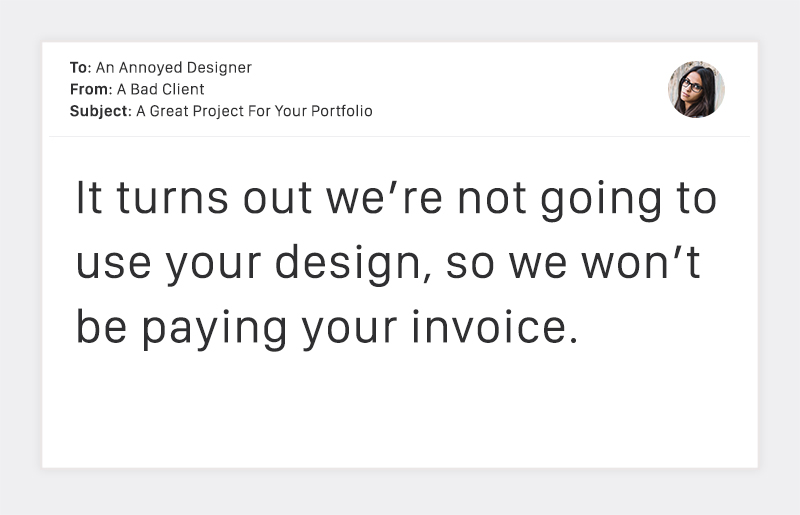
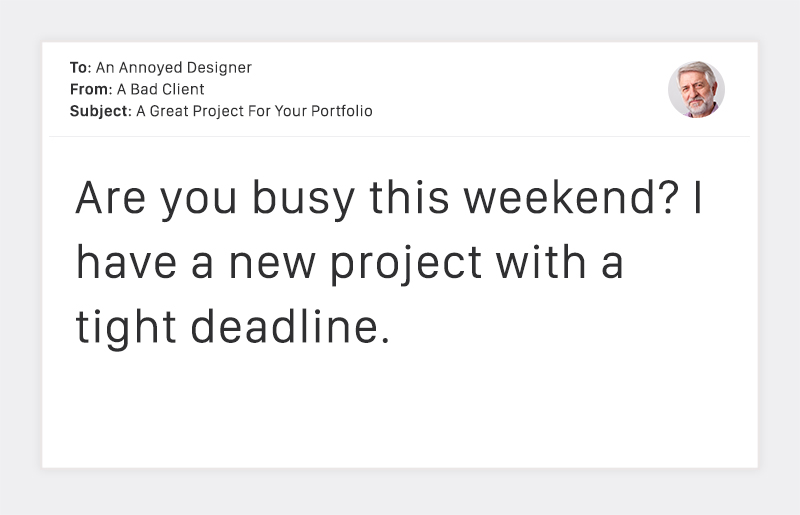
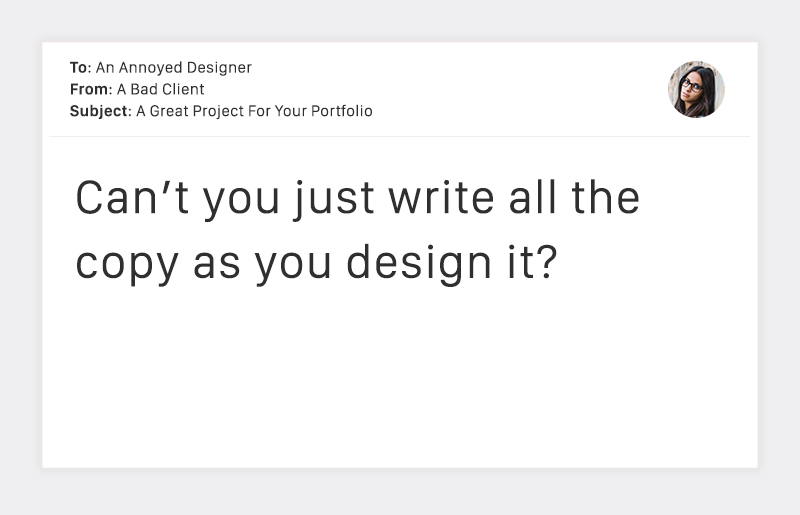
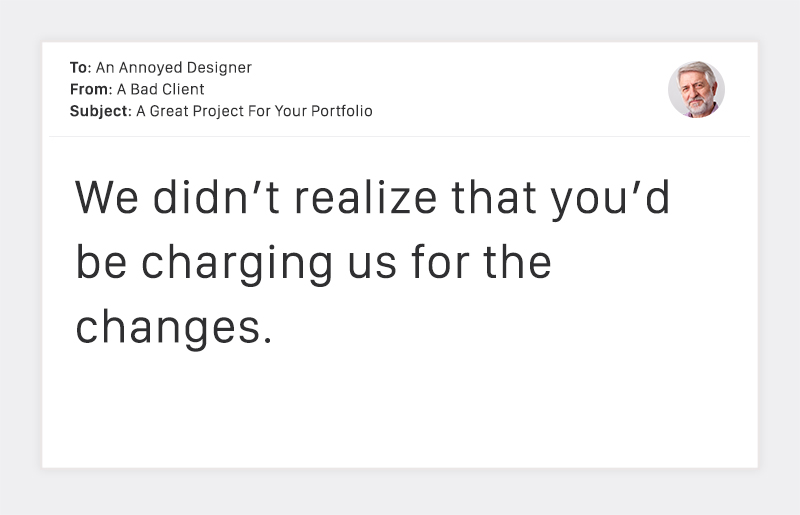
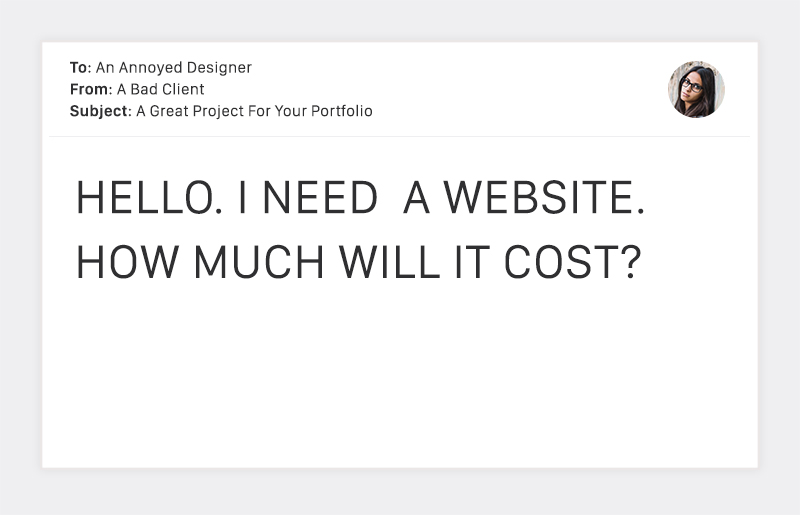
20 Terrible Client Emails That Every Designer Dreads

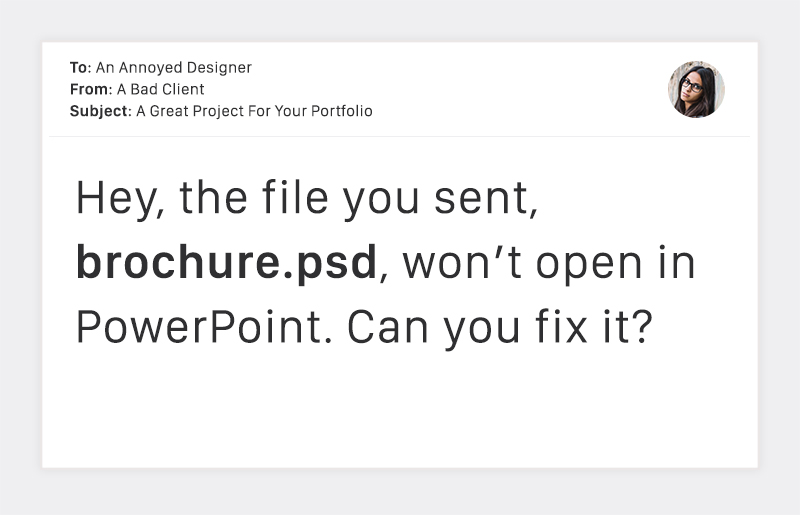
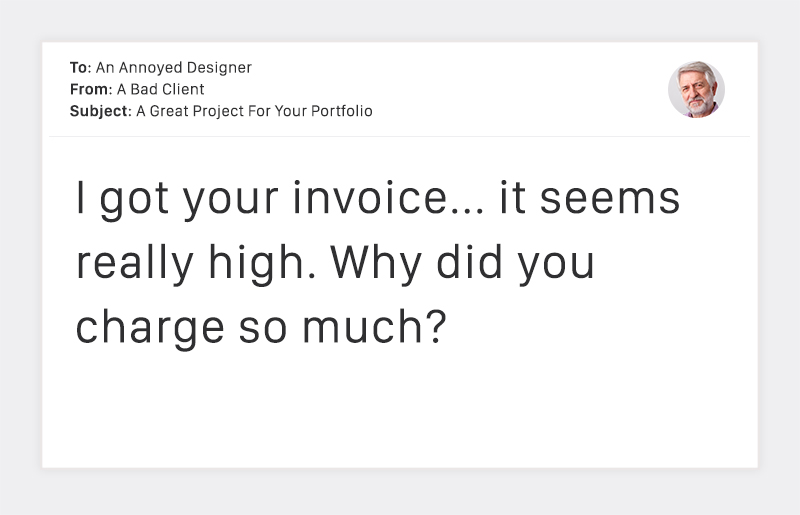
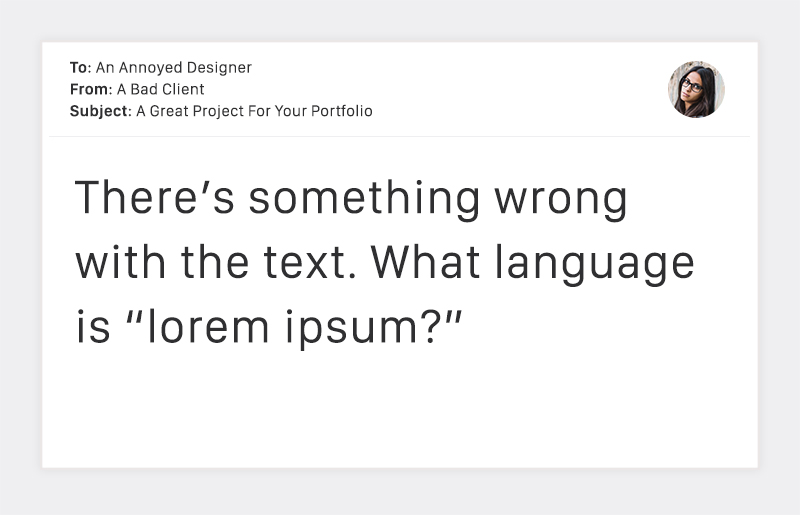
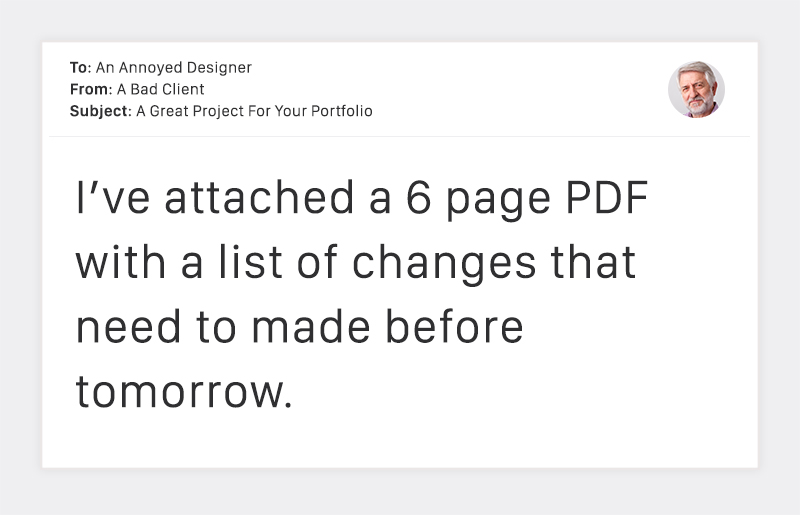
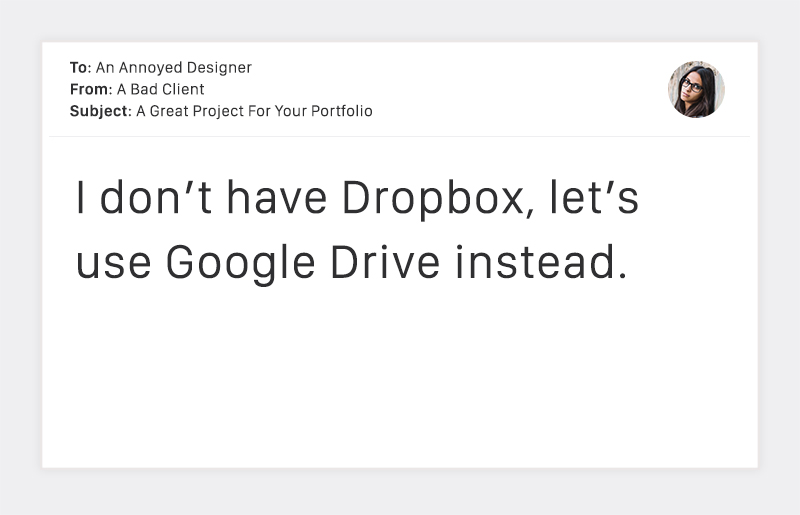
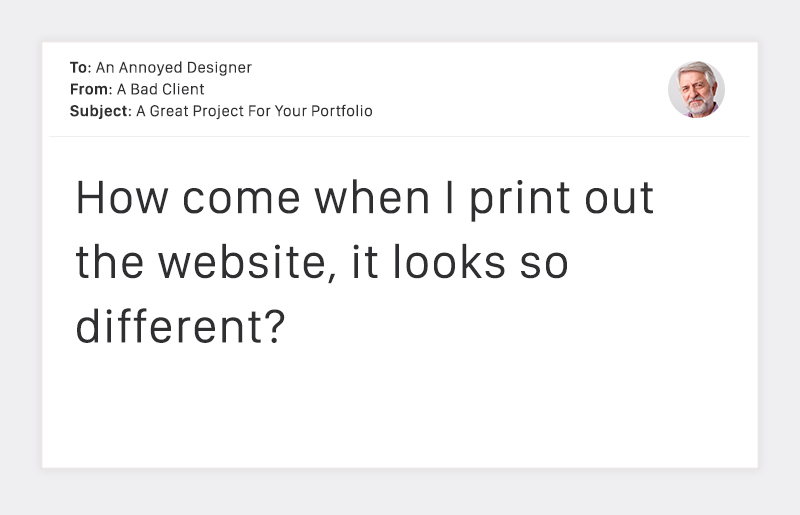
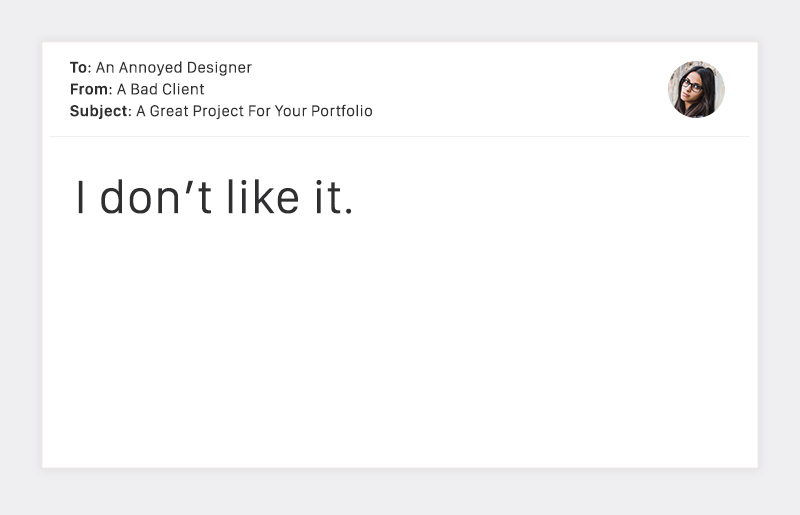
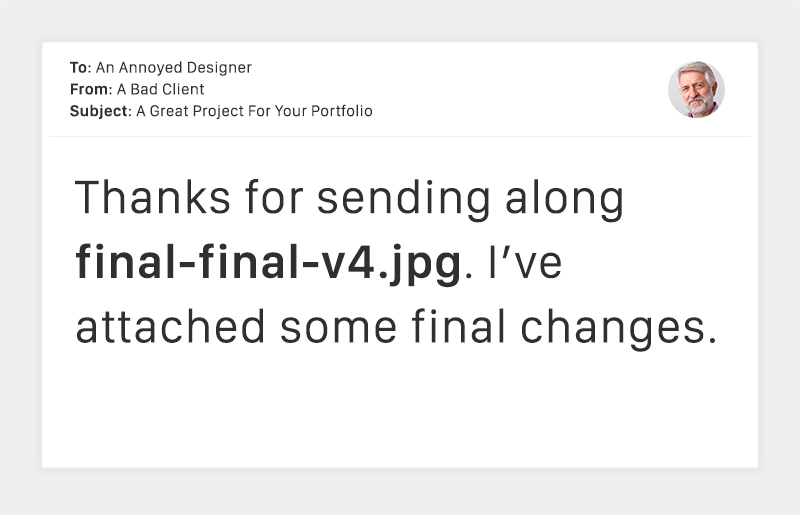
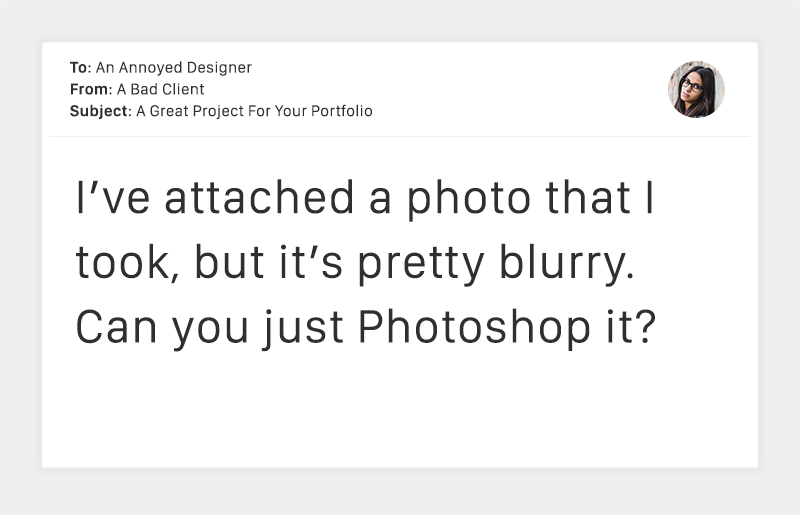
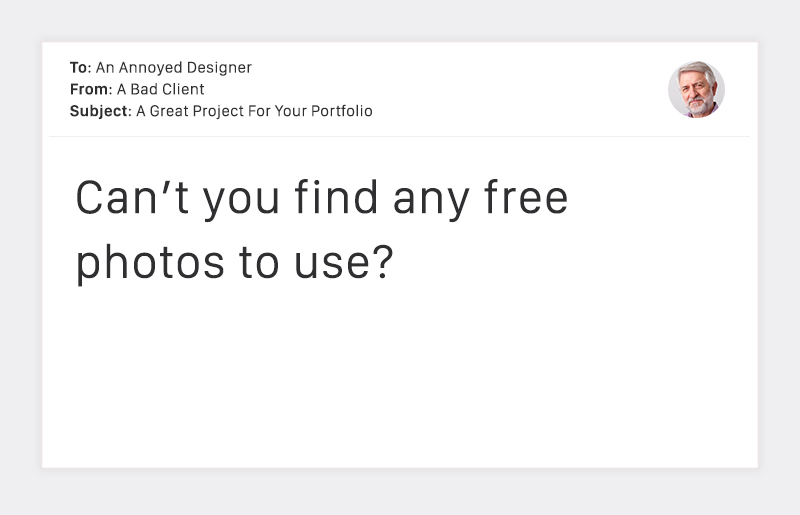
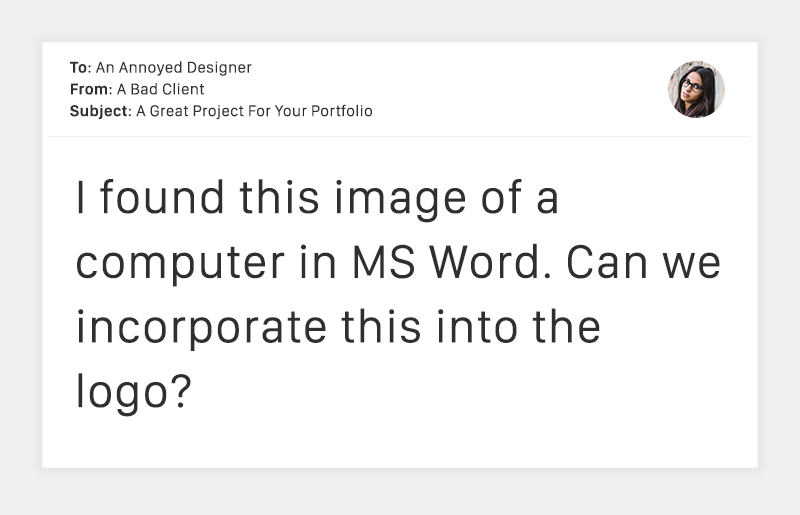
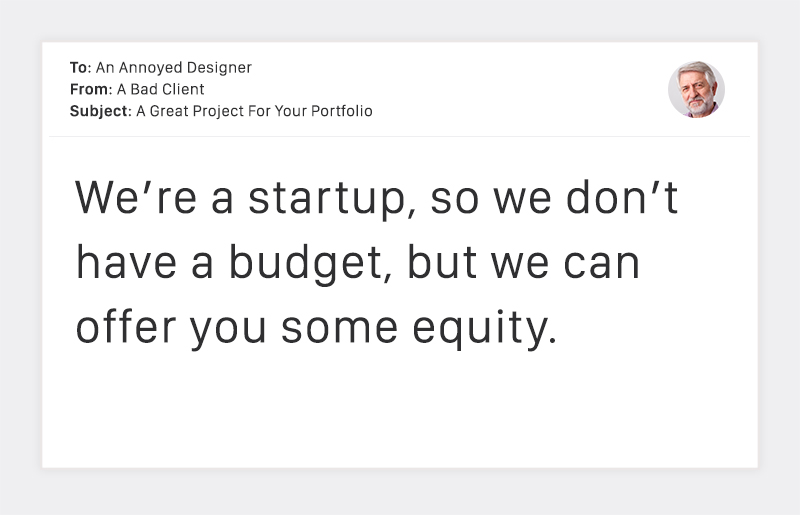
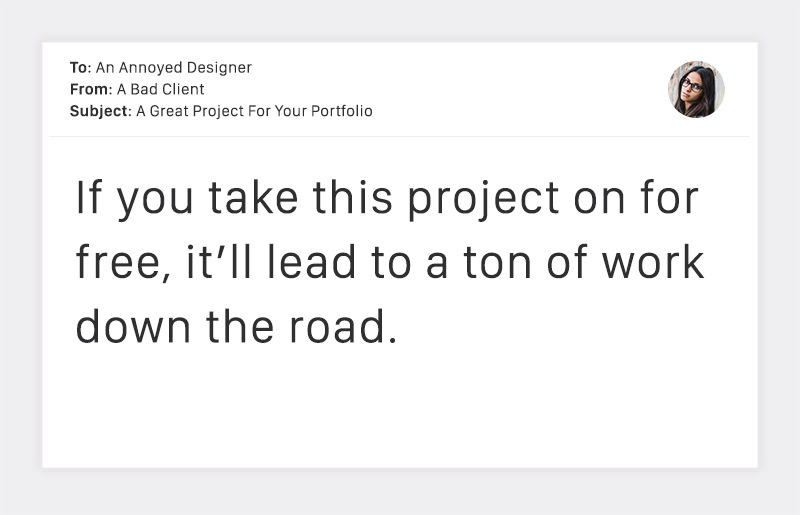
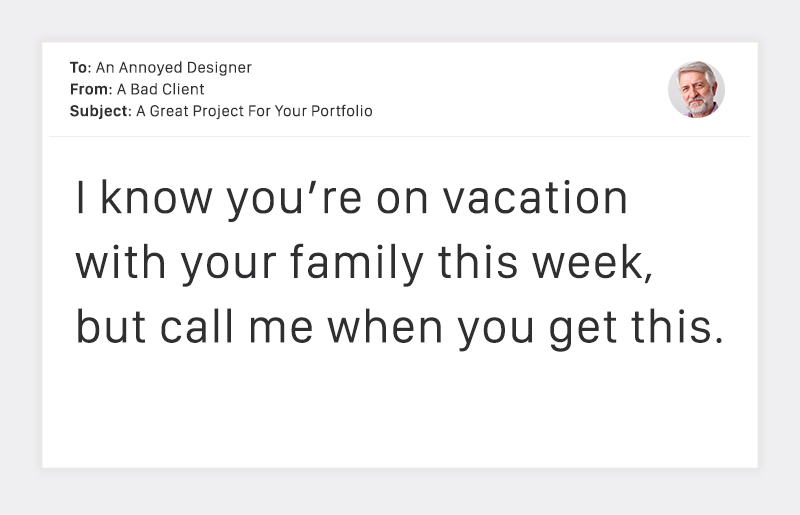
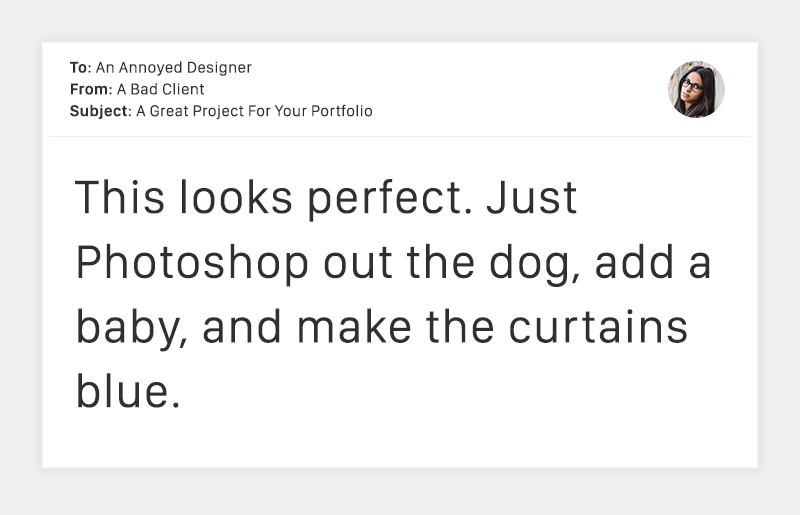
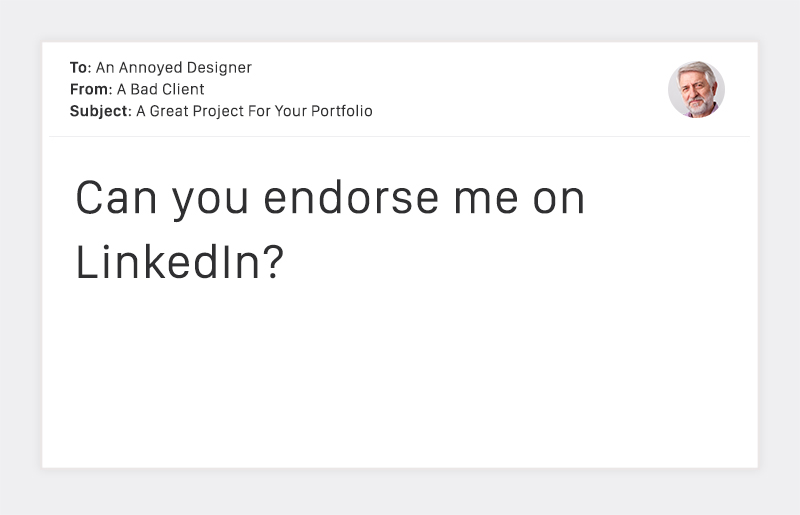
Do you ever dread checking your email? You just know that today’s the day when you’ll get one of those terrible client emails that will make your cringe. To help ease the pain, here are some unfortunately all-too-familiar emails that we hope will make you laugh.


If you see something familiar, Pin, Tweet, or otherwise share it out. If you have a terrible client email that’s even better, share it with the world with the hashtag #badClientEmails.


client-emails-1


client-emails-2


client-emails-3


client-emails-4


client-emails-5


client-emails-6


client-emails-7


client-emails-8


client-emails-9


client-emails-10


client-emails-11


client-emails-12


client-emails-13


client-emails-14


client-emails-15


client-emails-16


client-emails-17


client-emails-18


client-emails-19


client-emails-20


client-emails-20


Products Seen In This Post:


getpaidtowrite-banner
20 Terrible Client Emails That Every Designer Dreads